Free Device Mockup Generator: Place Screenshots in iPhone, Android & iPad Frames
Why App Store Screenshots Need Device Mockups
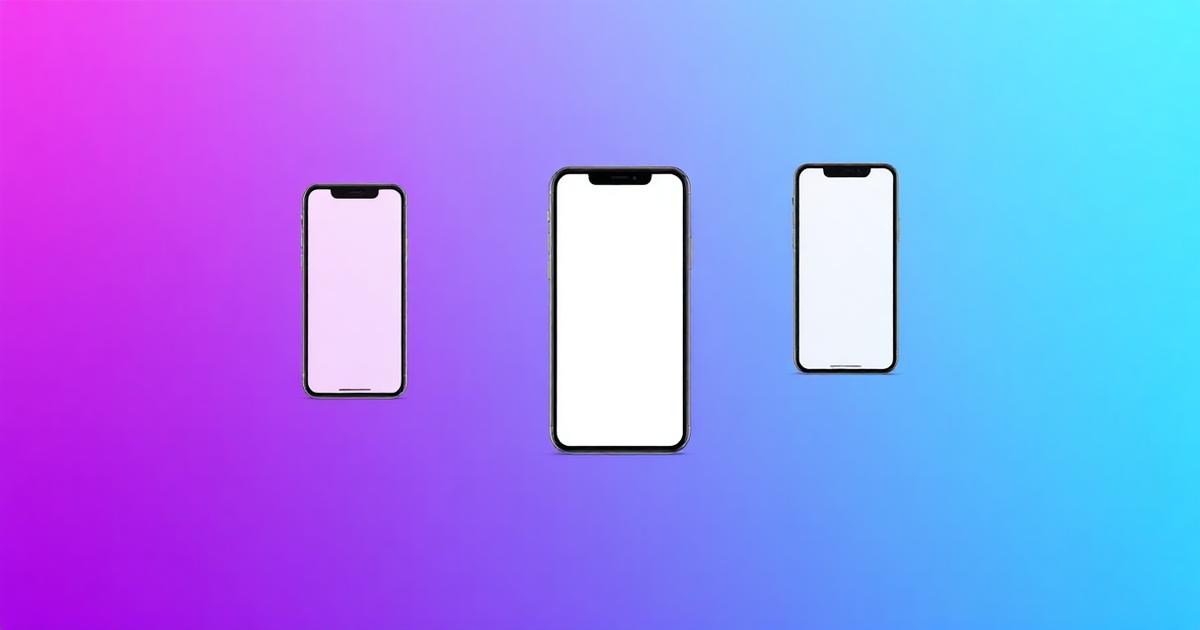
Your app's first impression on the App Store or Google Play happens in milliseconds. Users scrolling through search results see your screenshots before they read a single word of your description. A bare screenshot looks flat and forgettable. A screenshot inside a sleek iPhone or Pixel frame — set against a vibrant gradient — looks professional, intentional, and trustworthy.
Professional app marketing teams at companies like Slack, Notion, and Headspace invest heavily in device mockup presentations. But indie developers and small teams shouldn't need Photoshop skills or expensive design tools to achieve the same polished look.
How to Create Device Mockups in Seconds — Free
Our free Device Mockup Generator handles the entire process in your browser. Here's how:
Step 1: Upload your app screenshot. Drag and drop or click to select any PNG or JPG image.
Step 2: Choose your device frame. Select from iPhone 16 Pro, iPhone 16 Pro Max, Google Pixel 9, or iPad Pro 13-inch. Each frame is accurately proportioned with realistic bezels, rounded corners, and the Dynamic Island notch for iPhones.
Step 3: Pick a background gradient. Choose from Sunset, Ocean, Mint, Peach, Dark, or transparent backgrounds. The gradient adds depth and makes your mockup pop on any listing page.
Step 4: Click Generate and download your mockup as a high-resolution PNG.
Which Devices Should You Showcase?
For iOS apps, the iPhone 16 Pro is the most recognizable and aspirational device to feature. If your app has a tablet version, add an iPad Pro mockup to demonstrate the larger screen experience.
For Android apps, the Google Pixel 9 is Google's flagship and is widely recognized in the Android community. Using the Pixel frame also signals that your app is optimized for stock Android.
Pro tip: Create multiple mockups across devices. Show your app's versatility by placing the same screenshot in both an iPhone and iPad frame. This is especially powerful for App Store screenshots where you can showcase 10 images.
Optimizing Mockups for App Store Listings
Apple and Google have specific screenshot size requirements. Our mockup generator outputs images that work beautifully as marketing assets. For formal App Store submissions, pair mockups with the correct resolution screenshots (1290×2796 for iPhone 16 Pro, 2048×2732 for iPad Pro).
Background gradients matter more than you think. A/B testing consistently shows that screenshots with colorful gradient backgrounds outperform those with plain white or transparent backgrounds. Our preset gradients are designed for maximum visual impact.
Complete Your App Store Toolkit
Device mockups are just one piece of a professional app listing. For a complete App Store and Play Store toolkit, also use our companion tools:
Need to resize your screenshots for different devices? Our Resize IMAGE tool handles exact pixel dimensions, and the Compress IMAGE tool optimizes file sizes for faster listing uploads.
Resize screenshots to exact dimensions →
Compress images for faster uploads →
Privacy-First Processing
Unlike other mockup generators that require uploading your screenshots to a server, our tool processes everything locally in your browser using the Canvas API. Your app screenshots — which may contain unreleased features or sensitive UI — never leave your device.
This is especially important for developers working on apps under NDA, in stealth mode, or handling user data in their screenshots. Zero server uploads means zero risk of data exposure.
Tips for the Best Mockup Results
Use the highest resolution screenshots possible. The tool uses smart scaling to fit your image inside the device screen area, but starting with a high-res source ensures crisp results.
Match the screenshot aspect ratio to the device. An iPhone screenshot will look most natural in an iPhone frame. If your screenshot has a different aspect ratio, our tool automatically center-crops to fit.
Consider using mockups beyond app stores. Device mockups are powerful for pitch decks, social media marketing, website hero sections, blog posts, and investor presentations.
Frequently Asked Questions
How do I create a device mockup for my app screenshots?
Upload your app screenshot to iHateIMG's free Device Mockup Generator, select a device frame (iPhone 16 Pro, Pixel 9, iPad Pro), choose a gradient background, and click Generate. Your mockup downloads instantly as a PNG.
What device frames are available in the free mockup generator?
The tool includes iPhone 16 Pro, iPhone 16 Pro Max, Google Pixel 9, and iPad Pro 13-inch frames — the most popular devices for App Store and Play Store marketing screenshots.
Do I need Photoshop to create app store mockups?
No. iHateIMG's mockup generator runs entirely in your browser. Upload a screenshot, pick a device and background, and download your mockup in seconds — no design software required.
Can I use device mockups for App Store and Google Play listings?
Absolutely. The mockups are exported as high-resolution PNGs perfect for App Store screenshots, Play Store listings, social media posts, and marketing websites.
Is the device mockup generator really free?
Yes. The tool is 100% free with no watermarks on output. Processing happens in your browser — no server uploads, no account required.
Related Articles
AI Image Detection in 2026: How Detectors, Watermarks and Metadata Really Work
16 min readAI Image Metadata Explained: EXIF, XMP, C2PA and the Generator Tags That Expose You
12 min readAI Image Watermark Remover: The Complete 2026 Guide
10 min readAutomate Your Image Workflow with Batch Processing
6 min read